
How To Use These Ideas
This page is intentionally practical. It is not meant to prescribe one perfect landing-page blueprint. Instead, it collects proven ideas for what a shared guest landing page can contain besides the sponsor web part.
The key distinction is this: Guest Sponsor Info handles sponsor visibility. The surrounding landing-page elements handle orientation, SharePoint guest access, Microsoft 365 entry points, and self-service actions. Together, they turn a generic arrival page into something that actually helps B2B guests move forward.
If you use the SharePoint Quick Links web part, you can already build most of this without custom code. With audience targeting enabled, the same landing page can show different links to employees and guests.
Not every SharePoint web part supports audience targeting equally well. Quick Links is usually the safest workhorse here.
The examples below use placeholders such as <tenant-id>, <tenant-name>,
and <tenant-domain>. Replace them with your own values.
A Good Default Pattern
For many Microsoft Entra B2B tenants, two Quick Links web parts are already enough for a practical SharePoint guest landing page:
- One area for Microsoft 365 entry points in the correct tenant.
- One area for My Guest Account self-service actions.
- Optionally, a small standalone Quick Links web part for More Apps so it looks secondary rather than like the primary destination.
This works especially well when the landing page itself uses audience targeting. Employees can see internal employee resources, while guests see only the links that actually help them in the resource tenant.
Separate from those outbound links, the landing page itself can also be the hub site for the guest area. That gives you a shared navigation layer, hub branding options, and a clearer identity for the whole area even before you associate any other sites.
That can also help with naming. For example, the underlying site can keep a
friendly site title such as Welcome @ Contoso, while the hub identity and hub
navigation present the broader area as something like Entrance Area.
If you later do associate more sites, that hub becomes even more useful. You can add links to associated or non-associated sites in the hub navigation and use audience targeting so employees and guests do not have to see the same hub links.
That gives you a clean split of responsibilities on the page:
- the sponsor web part answers who can help me
- the Quick Links areas answer where should I go next
- the account links answer what can I fix myself
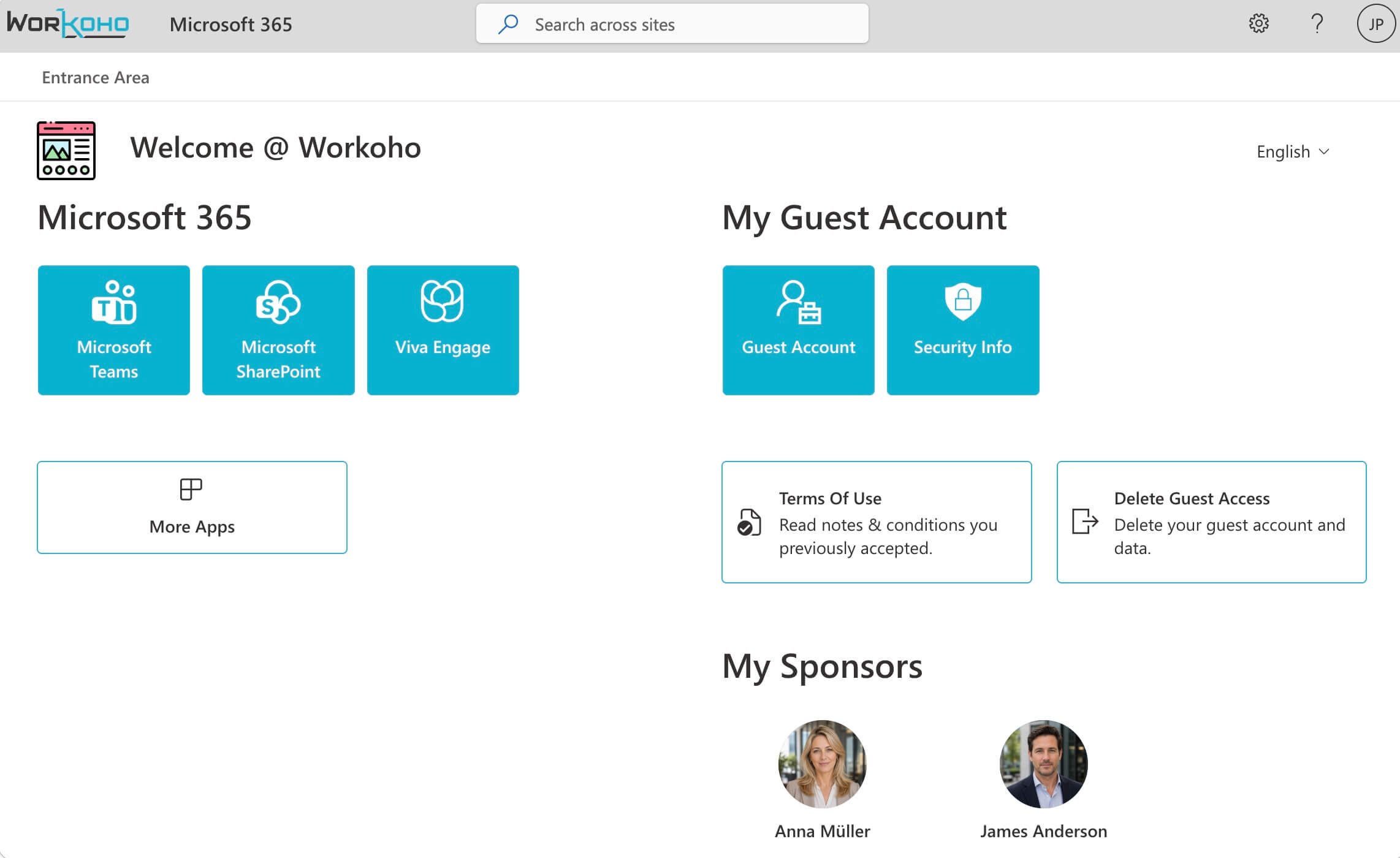
The screenshot below shows one possible composition: a shared guest landing page with tenant-pinned Quick Links near the top and the sponsor area further down the page.
Make The Page Easy To Return To
Guests benefit from a page they can find again without friction.
- If the landing page eventually lives at the tenant root site (
/), the URL is often easy enough to remember on its own. - If that is not possible, consider a memorable short URL or shortlink that resolves to the landing page.
- Add a visible call to action near the top of the page asking guests to bookmark the page after their first successful sign-in.
- Keep mentioning the page in invitation and onboarding emails, but do not assume guests will keep those emails forever or want to search for them later.
Because browsers do not offer one universal “add bookmark” link that works cleanly everywhere, this is usually best as a simple instruction or callout, not as a special scripted button.
Additional Content Blocks Worth Adding
Besides the Quick Links areas, a few small content blocks help turn a merely functional page into one that actually orients people.
- A short welcome with context: two or three sentences are often enough to tell the guest which organization invited them and what kind of collaboration this page is meant to support.
- One clear first step instead of a complete index: point to the one team, one channel, or one project area that matters most on day one.
- Curated resources instead of a sitemap: show the handful of links that are relevant in the first week, not every app that exists in theory.
- A small news or notices area: if the page later carries maintenance windows, policy updates, or collaboration announcements, guests have a reason to come back and bookmark it.
- A real contact option: a name and channel help more than an anonymous shared mailbox. This is exactly where the sponsor web part complements the rest of the page.
If you want a welcome message to appear only for guests, Quick Links can even serve as a pragmatic workaround: link back to the same page, use a minimal presentation style, and apply audience targeting to the web part.
Language, Branding, And Page Identity
Orientation is not created by links alone. Language and visual identity do part of the work the moment the page loads.
- If your landing page serves international audiences, English is usually the safest default language for the site collection. That choice cannot be changed later.
- Publish additional translated page versions for important guest audiences. This pays off faster than many teams initially expect.
- Make sure the organization name, logo, global navigation, and SharePoint theme are properly configured. Branding immediately answers whose environment the guest has landed in.
- If the landing page is also your root site or a hub site, that identity gets even stronger. It helps both with orientation and with finding the page again later.
Area 1 — Microsoft 365
This area gives guests stable entry points into the resource tenant. Where a
Microsoft URL supports tenantId, include it. For SharePoint, the tenant
hostname itself already fixes the tenant context.
For Microsoft Entra B2B guest onboarding, that matters more than it sounds. Guests often know they were invited, but not which tenant-specific destination is supposed to become their reliable starting point.
Microsoft Teams
Use a tenant-pinned Teams entry link when you want Teams to open in the correct resource tenant instead of whichever tenant happened to be active before.
https://teams.cloud.microsoft/?tenantId=<tenant-id>
This is useful because it does not assume that the guest already knows how to switch tenant context manually. It also avoids sending the guest into a team- specific deep link before you know that team membership already exists. Microsoft explicitly documents that guest functionality in Teams is only available after the guest has been added to at least one team.
Microsoft SharePoint
Link to a tenant-owned overview page, another hub site, or a site directory that helps guests find shared workspaces and storage locations even without navigating through Teams first.
https://<tenant-name>.sharepoint.com/teams/overview
In some tenants this is a hub site. In others it is a manually curated overview page. Either is fine. The important part is that the URL is already tenant- fixed because it uses your SharePoint hostname. It can also help guests find Team-connected storage areas or plain team sites that are not “teamified”.
That is also one reason why a SharePoint landing page is such a strong first destination: it works reliably before every Teams feature is actually ready for the guest inside the resource tenant.
Viva Engage
If your tenant uses Viva Engage as a broader community layer, it can be a useful parallel entry point beside Teams and SharePoint.
https://engage.cloud.microsoft/main/org/<tenant-domain>/
This works best when the guest actually has access to relevant communities. If not, keep it audience-targeted or omit it.
More Apps
A tenant-pinned My Applications link is useful as a fallback, but on the landing page it usually works better as a secondary action than as the primary entry point.
https://myapplications.microsoft.com/?tenantId=<tenant-id>
A nice pattern is to render this as its own small Quick Links web part without a visible section title, so it looks like an extra utility link rather than the main path.
If you actively maintain My Applications, consider also placing one visible link there back to the Entrance Area. My Applications can be a useful fallback, but it is rarely the best primary starting page.
Area 2 — My Guest Account
This area focuses on self-service. It helps guests manage their account inside the correct resource tenant without first figuring out tenant switching on their own.
On a well-designed SharePoint guest landing page, these links complement the sponsor area instead of competing with it. The sponsor relationship tells the guest who is responsible for their access. Some tools call that same role the owner; here we use Microsoft’s term, sponsor. The self-service links help them solve the issues that do not need a human reply.
Guest Account
Link directly to the guest’s account view in the correct tenant.
https://myaccount.microsoft.com/?tenantId=<tenant-id>
This is useful when the guest needs to review account context, organization information, or account-related prompts in the resource tenant.
Security Info
This can be a helpful link when the guest needs to review or register authentication methods in the resource tenant.
https://mysignins.microsoft.com/security-info?tenantId=<tenant-id>
Treat this as a practical deep-link pattern and re-test it periodically.
Terms of Use
If your tenant uses Terms of Use, a direct link can make prior acceptances easier to revisit.
https://myaccount.microsoft.com/termsofuse/myacceptances?tenantId=<tenant-id>
Treat this as a practical deep-link pattern and re-test it periodically.
Delete Guest Access
Microsoft documents leaving an organization through the My Account portal’s Organizations area. If you want your landing page to expose that exit path more directly, use a tenant-qualified leave deep link instead of only linking to the generic account homepage.
https://myaccount.microsoft.com/organizations/leave/<tenant-id>?tenant=<tenant-id>
This aims at the same leave flow more directly. Treat it as a practical deep-link pattern and re-test it periodically. If it ever stops working in your tenant, fall back to the tenant-pinned My Account entry and navigate to Organizations -> Leave manually.
You may want to label this link more explicitly on the page, for example as Delete Guest Access, Remove my guest access, or Leave this organization.
If your organization also maintains separate internal external accounts for the
same people, often with patterns such as .ext, vendor, partner, or
similar labels, a clear lifecycle link is worth considering: let the guest
account be the leading object, and when it is deactivated or deleted, clean up
the linked internal external account as well. That turns this link into more
than a transparency feature; it becomes a practical entry point into an orderly
cleanup process.
Link Rules Of Thumb
Some of the examples on this page are true deep links. Others are simply tenant-pinned URLs that are useful as stable starting points. The same review logic still applies to both.
- Use
tenantIdwherever the target service supports it. - For SharePoint, use a tenant-owned URL instead of a generic Microsoft 365 home page.
- Prefer overview pages and navigation hubs over links that only work after team membership exists.
- Test every important link while signed into a home tenant and at least one additional guest tenant.
- Re-test these links periodically. The Teams patterns are documented, but some account-portal URLs are practical deep-link patterns that Microsoft can change over time.
A Simple Audience-Targeting Model
On the same landing page, guests and employees do not need to see the same surrounding content.
- Show guests sponsor help, tenant-pinned app links, security-info self- service, and optional guest policy links.
- Show employees internal navigation, internal IT support, HR resources, and internal-only collaboration destinations.
- Go one level deeper when needed: partners with their own internal external
account such as
.ext,vendor, or similar patterns often have different needs than classic guests because they use multiple accounts in parallel and frequently continue working from devices managed by their own company. - Keep the Guest Sponsor Info web part where it adds value, but use Quick Links around it to make the whole page feel intentional.
Show The Guest Which Type They Are
If you already use audience targeting, the landing page can also tell the guest which collaboration frame they are in: Partner, Customer, Collaboration, or if needed Supplier. That is more than a nice extra. It gives context. Many of the surrounding links make more sense once that is clear.
Modern SharePoint only supports audience targeting well in a limited number of places. Officially that mostly means navigation, pages, News, Highlighted Content, Quick Links, and Events. For this exact use case, Quick Links is still often the best fit because individual links can be targeted directly to an audience.
A useful pattern is a small dedicated Quick Links web part in a restrained layout, often List. Create one link per guest type that points back to the same page, hide unnecessary visual noise, and use labels such as:
- You are working here as a partner guest.
- You are working here as a customer guest.
- Your access is set up as short-lived collaboration.
Until the user hovers over it, that kind of link is often perceived more like a normal hint than a large call to action. Technically it is still a link, which means it can benefit from audience targeting. This is not a built-in text web part feature, but a pragmatic workaround.
Put Guest Segments To Work
If your tenant already classifies guests broadly as Partner, Customer, and Collaboration, do not leave that logic buried in the directory. Use it on the landing page too. Keep the model simple at first: one wide audience for all guests and only the segments where risk, default access, or onboarding really differ. Suppliers can have their own audience if that is useful, or simply sit under Partner initially.
A practical page pattern can look like this:
- All guests see sponsor visibility, My Account, security info, leave-self-service, and the general tenant-pinned entry links.
- Partners also see durable project spaces, delivery or operations documentation, service or ticket entry points, and recurring collaboration apps.
- Customers see more curated project or support destinations, more tightly selected resources, and especially clear contact paths.
- Collaboration guests mostly see the one workshop, review, or file- exchange context plus very clear guidance on duration and next step.
- Suppliers, if you run them separately, can also receive procurement- or delivery-specific links and matching approval flows.
The value does not stop at the page itself. The same segmentation often helps outside the page too:
- Access packages can provide segment-specific default bundles of groups, apps, and SharePoint resources.
- Applications outside Microsoft Teams can be enabled for certain guest groups by default instead of requiring every access request separately.
- Access reviews become more meaningful when all external accounts are not thrown into one generic review.
- Conditional Access and Terms of Use can target the right guest cohorts more precisely.
- In a security incident, segment membership often gives a useful first clue about likely context, even though it is only one indicator among many.
For this use case, a static group per guest type is often the most robust foundation in practice. SharePoint audience targeting does support Microsoft Entra groups with dynamic membership, but that only helps if the guest type lives in an attribute that dynamic rules can actually evaluate.
Depending on the architecture, that might be a standard attribute, an extension attribute, or a supported directory extension. Many governance solutions intentionally keep their richer business metadata separate from the rest of the directory schema. In that case, it is often simpler to maintain the audience groups directly when the guest account is created.
In EasyLife 365 Collaboration, that is a sensible pattern: the group membership needed for audience targeting can be assigned automatically from the selected template, while richer guest metadata remains separate on the guest object in an app-owned directory extension. That avoids conflicts in the customer tenant and can be removed cleanly later if needed.
That makes EasyLife 365 Collaboration a natural companion when the landing page experience and the governance model should reinforce each other.
Workoho, the team behind Guest Sponsor Info, is an EasyLife 365 Platinum Partner.

Book a demo with Workoho to see how EasyLife connects governance, redirects, and sponsor ownership around the landing page.
Book a DemoRelated Microsoft Guidance
- Target content to a specific audience on a SharePoint site
- Use the Quick Links web part
- Deep links in Microsoft Teams
- Planning your SharePoint hub sites
- Manage rules for dynamic membership groups in Microsoft Entra ID
- Change resource roles for an access package in entitlement management
- Conditional Access: Users, groups, agents, and workload identities
- Add custom data to resources by using extensions
Related EasyLife Guidance
- Guest Accounts Learning Guide: walks through a full guest lifecycle from invitation to confirmation, disablement, and deletion.
- Guest Accounts in Admin: useful for bulk changes, template and policy reassignment, compliance status, and import/export.
- Templates Overview: relevant when templates are used to drive not only fields and policies, but also audiences and visibility.
- Confirmation Policy for Guest Accounts: a good fit for the owner or sponsor confirmation angle and ongoing guest lifecycle control.