
Features
Built for the moment a Microsoft Entra B2B guest lands on your SharePoint guest landing page and needs sponsor visibility immediately — not just the name of whoever invited them.

Live Sponsor Cards
Rich contact cards give Microsoft Entra B2B guests direct sponsor visibility on the SharePoint landing page: live profile photos, display name, job title, email, phone number, and office address — sourced from Microsoft Graph through the companion Azure Function proxy. Current directory data, no manual upkeep.
- Three layout modes: Full, Compact, and Auto
- Live profile photos from Microsoft Graph
- Office address with optional map integration
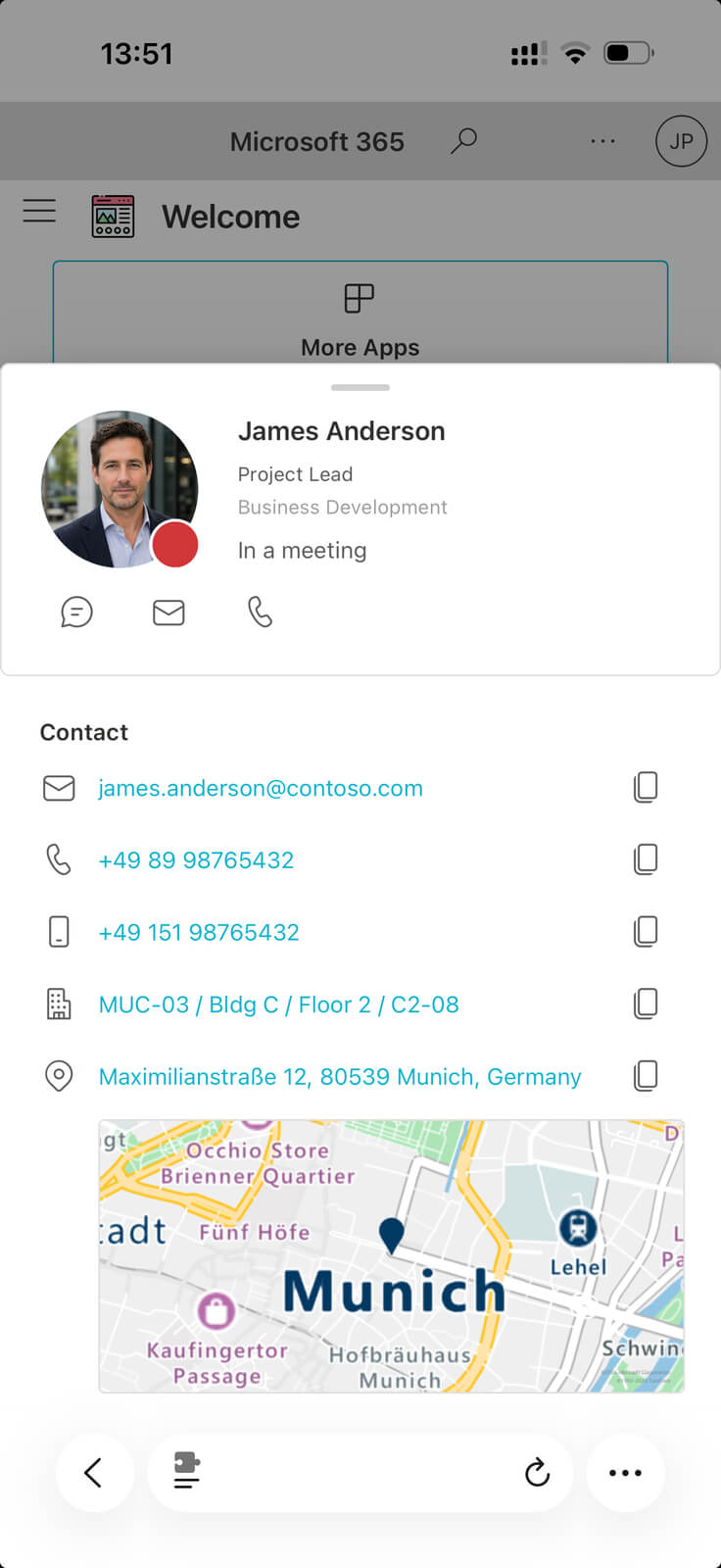
Rich Contact Details
Hovering or tabbing to a card opens a contact panel with the details a guest actually needs — email, work phone, mobile, office location, and full address. Each field has a one-click copy button. The panel can also show the sponsor's manager for extra orientation when Microsoft Teams is not yet available.
- One-click copy for email, phone, and mobile
- Inline map preview via Azure Maps
- Manager name, title, and department
- Every field individually toggleable by admins
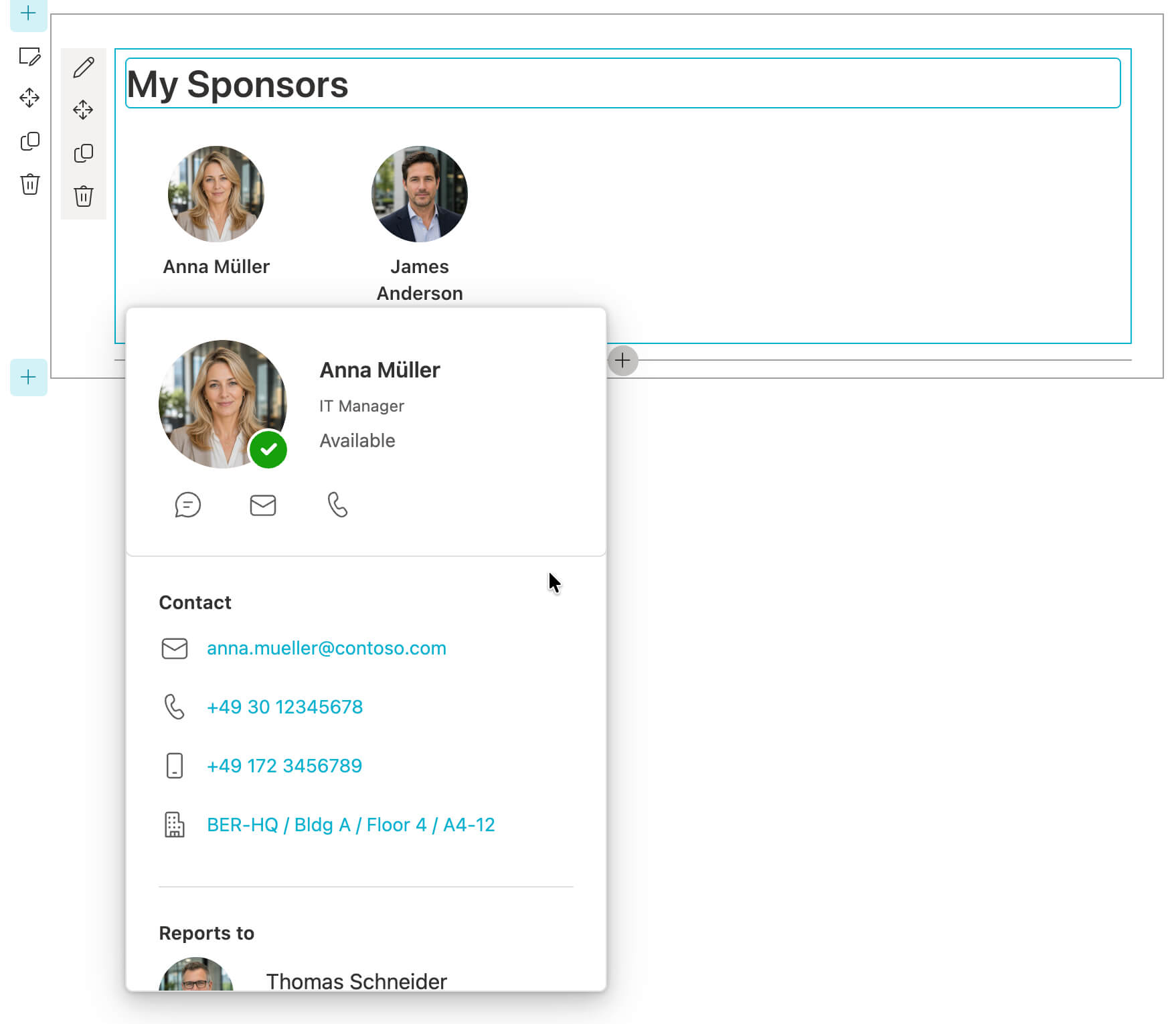
Editor Preview Mode
SharePoint page editors can place and refine the web part before the Azure side is connected or any guest signs in. In edit mode, the web part renders realistic mock sponsors so spacing, expanded cards, and surrounding page composition can be reviewed safely. The same settings can also enable public demo mode on the live page so internal users and guests can try the web part without edit mode or a guest account.
- Mock sponsor cards directly in SharePoint edit mode
- Optional public demo mode on the live page for all visitors
- Expanded card preview with contact and manager sections
- No Microsoft Graph calls and no guest account required

Real-Time Presence in Microsoft Teams
Coloured presence indicators show whether a sponsor is reachable right now. Updates automatically with intelligent polling.

Microsoft Teams Chat & Call Integration
One-click deep links let guests start a Microsoft Teams chat or call directly from the sponsor card. If Microsoft Teams is not provisioned yet, the web part shows an explanation instead of a broken link.
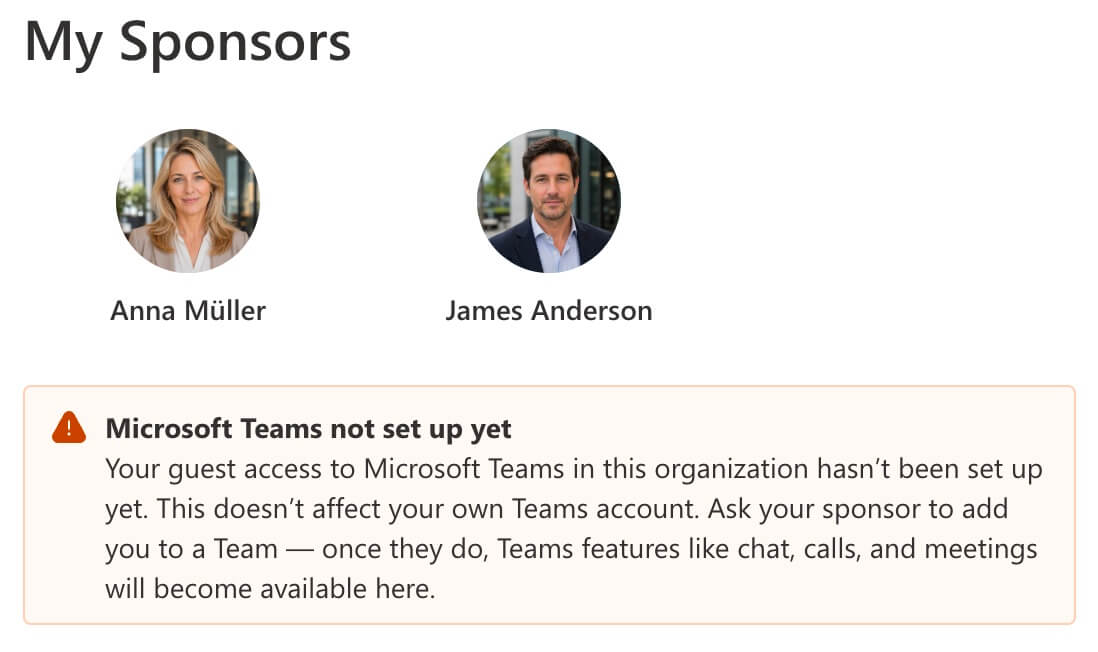
Microsoft Teams Onboarding Status
A guest account can exist in Microsoft Entra before it has been added to any Microsoft Teams team. In real onboarding flows, that leaves guests on a SharePoint landing page with contact actions that look ready but are not. The web part detects this, shows a clear explanation, and disables chat and call buttons until Teams access is confirmed.

Automatic Sponsor Delegation
When multiple sponsors are assigned in priority order, the web part lets the next eligible sponsor step in automatically. Disabled accounts, shared mailboxes, resource accounts, and deleted users are filtered out of the active contact set.
Sponsors are evaluated in configured priority order — primary first, then secondary, and so on. Account status, mailbox type, resource-account status, and sponsor eligibility filters determine who can appear as a full contact. Eligible sponsors fill the visible slots, while unavailable sponsors can remain as read-only context. That gives the guest more trust than seeing only the original inviter and nobody else.

Privacy-First Architecture
Sponsor and guest data stays inside your Microsoft 365 and Azure environment. The solution sends no runtime data to Workoho, requires no Workoho-operated backend, and keeps directory access inside your tenant. The Azure Function proxy ensures guests never need directory-level permissions.
Read the Privacy Policy →More features
17 Languages
English, German, French, Spanish, Italian, Danish, Finnish, Japanese, Norwegian, Swedish, Chinese, Portuguese, Polish, Dutch, Czech, Hungarian, and Romanian — including formal and informal modes.
Zero-Trust Security
Guests authenticate with their own identity but never hold directory permissions. EasyAuth validates each request before it reaches the function, and the Managed Identity handles all Microsoft Graph calls on their behalf.
Built-in Resilience
Handles Microsoft Graph throttling and transient failures without showing errors to guests. Progressive loading keeps something visible, and the web part recovers automatically.
Try Before You Commit
Demo Mode can expose realistic mock sponsor cards on the live page before you set up any Azure infrastructure. Test with internal users, guests, or other stakeholders first — no API, no guest account, no commitment required.
Silent for Internal Users
The web part renders nothing for internal member accounts — no Graph calls and no visible component. Only B2B guests see the sponsor cards. Page editors see a compact preview instead of the full interface.
Ready to improve your guest experience?
Deploy the companion Azure Function to Azure with the included setup flow and installer script. The built-in Setup Wizard guides you through the rest, directly from the SharePoint page. Source-available and free to use for noncompeting purposes.